
Linear-AI Filter
How Linear re-designed their filter to integrate AI

Breaking down Linear’s AI filter user flow. Video, screenshots, and Figma files included.
For the sake of time and moving fast, we’re using Untitled UI Design System. I highly recommend it.
Video
Screenshots
1/ Simple callout to use their AI filter feature. Only thing I’d probably change is add more context about its capabilities. But then again, that might not matter. This is a tool geared towards developers—they probably have a good understanding of what could happen here.
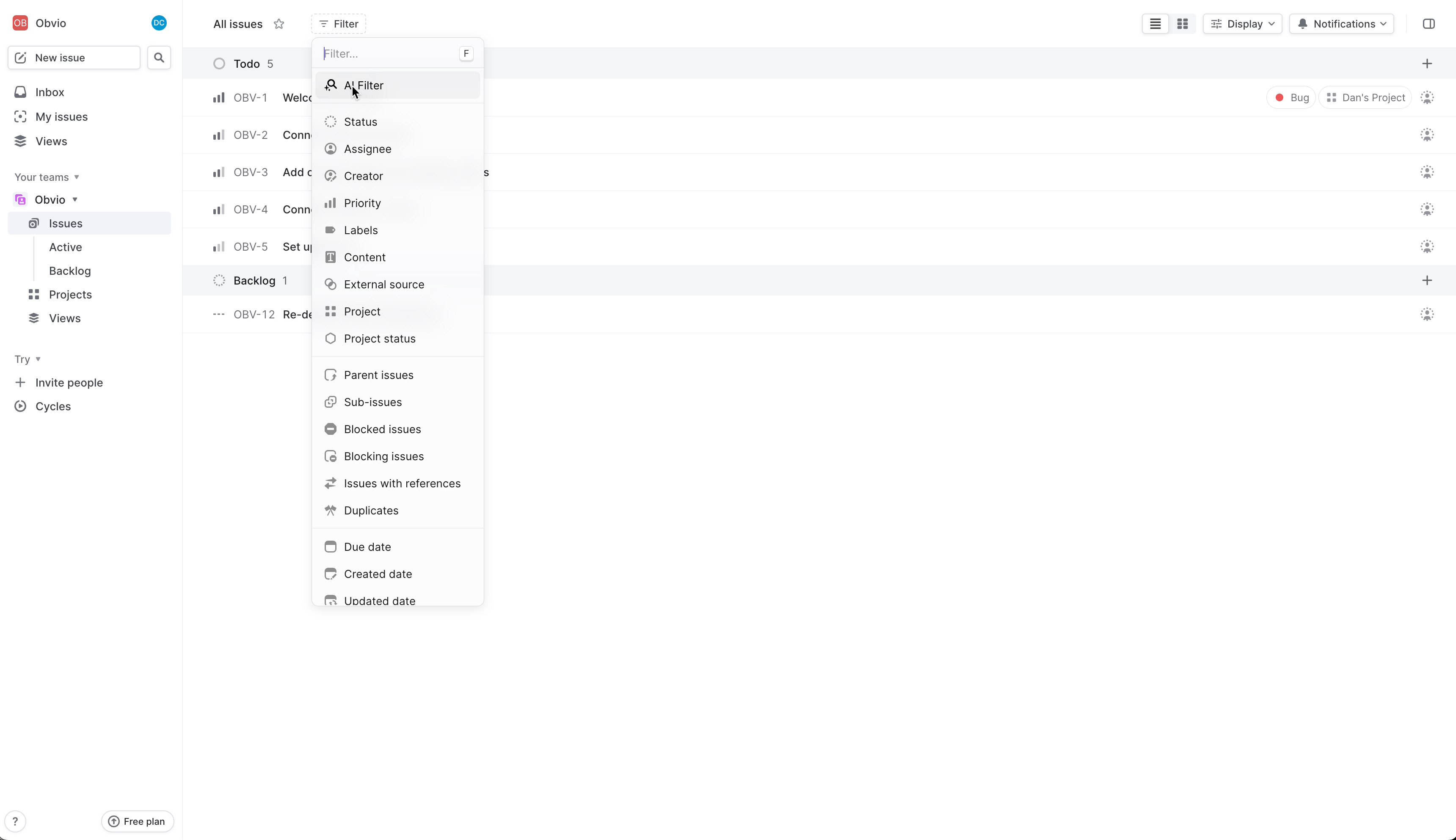
2/ As soon as you click on it you’re prompted to start typing.
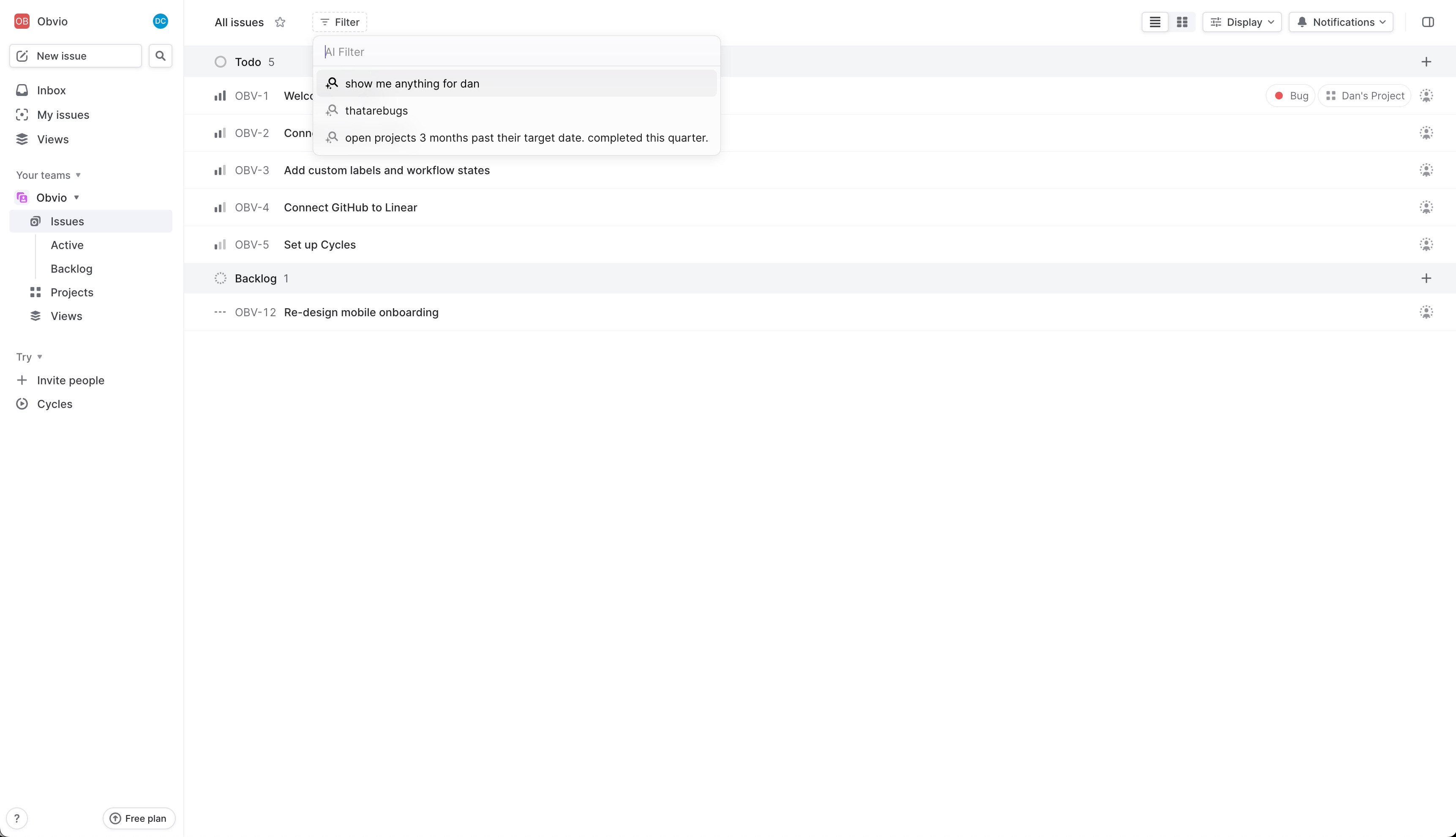
3/ I appreciate the display of current input next to the 'AI Filter' label, adds useful context.
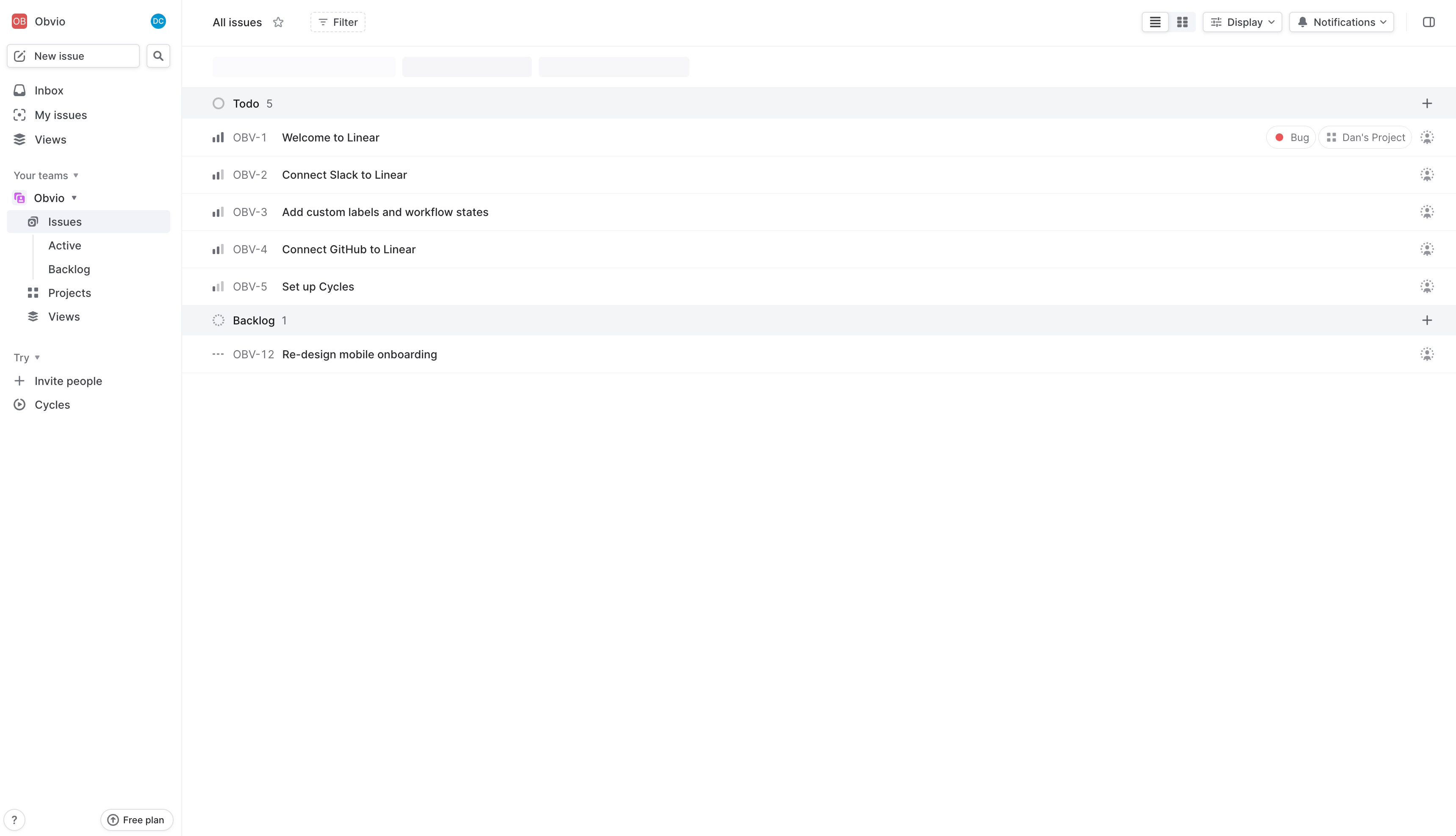
4/ Nice subtle loading state with the skeleton frames. Lets me know something is happening.
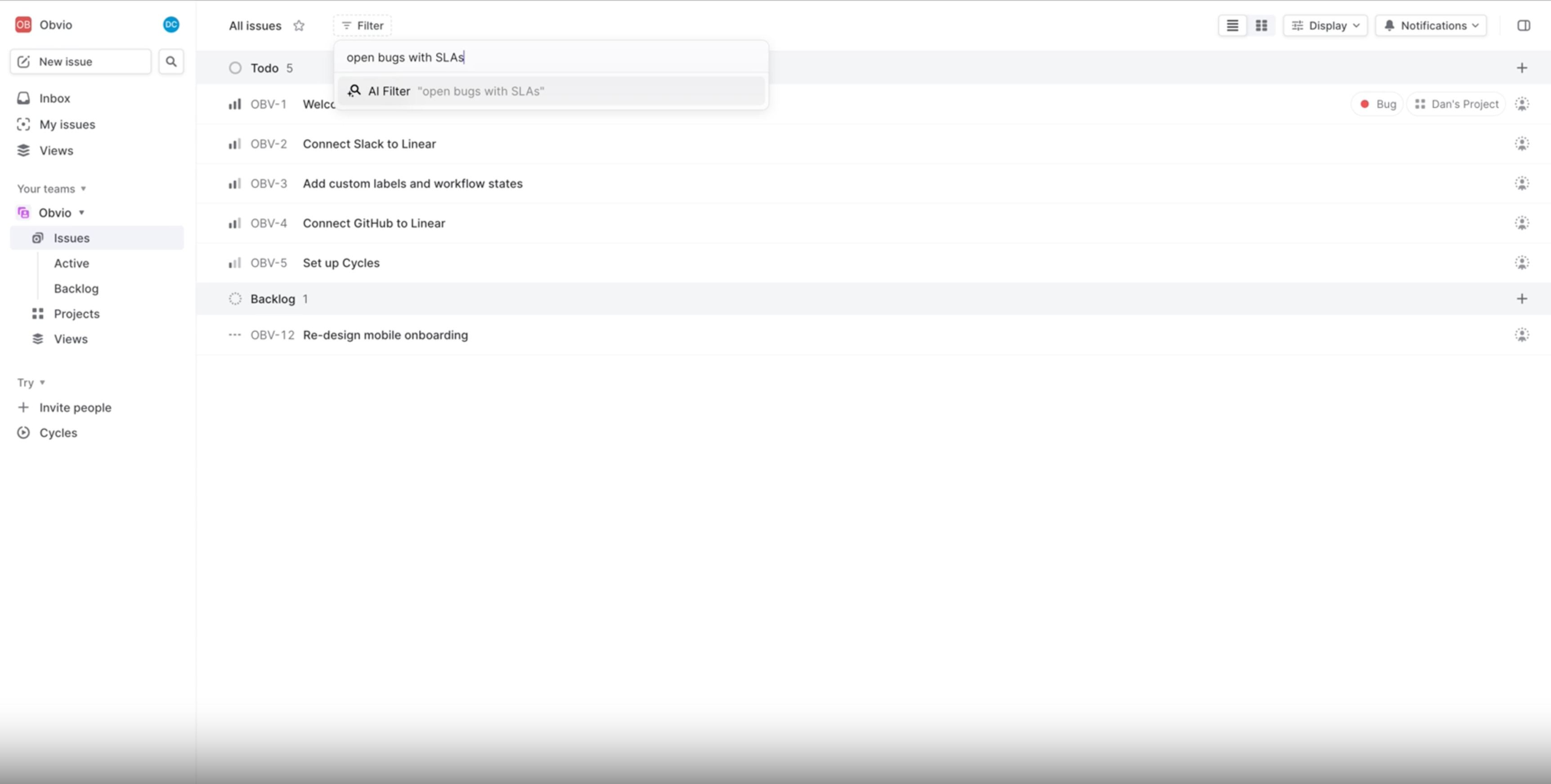
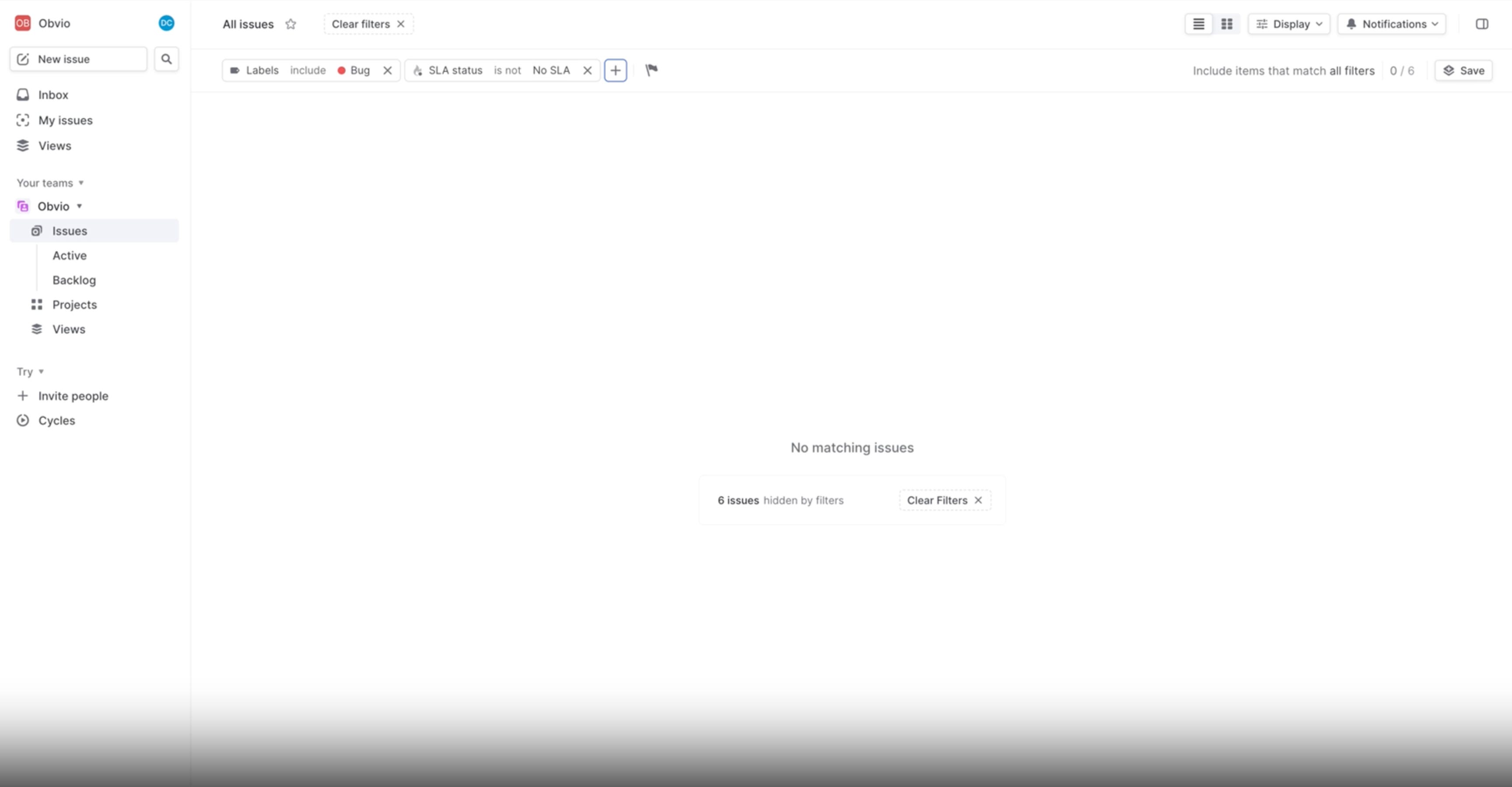
5/ Noticed my prompt was “open bugs with SLAs”. And filters were magically applied. Just using good old fashioned natural language.
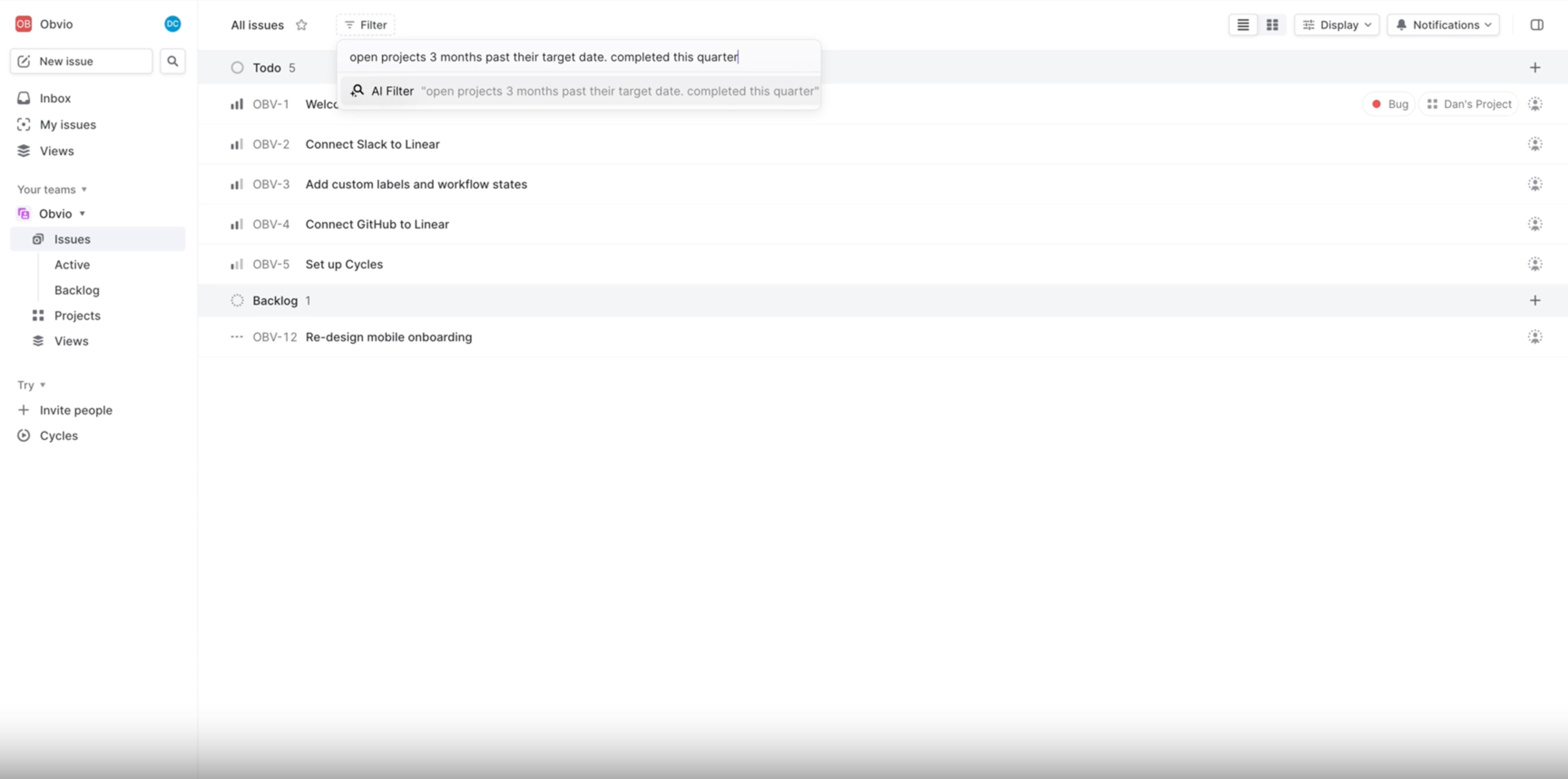
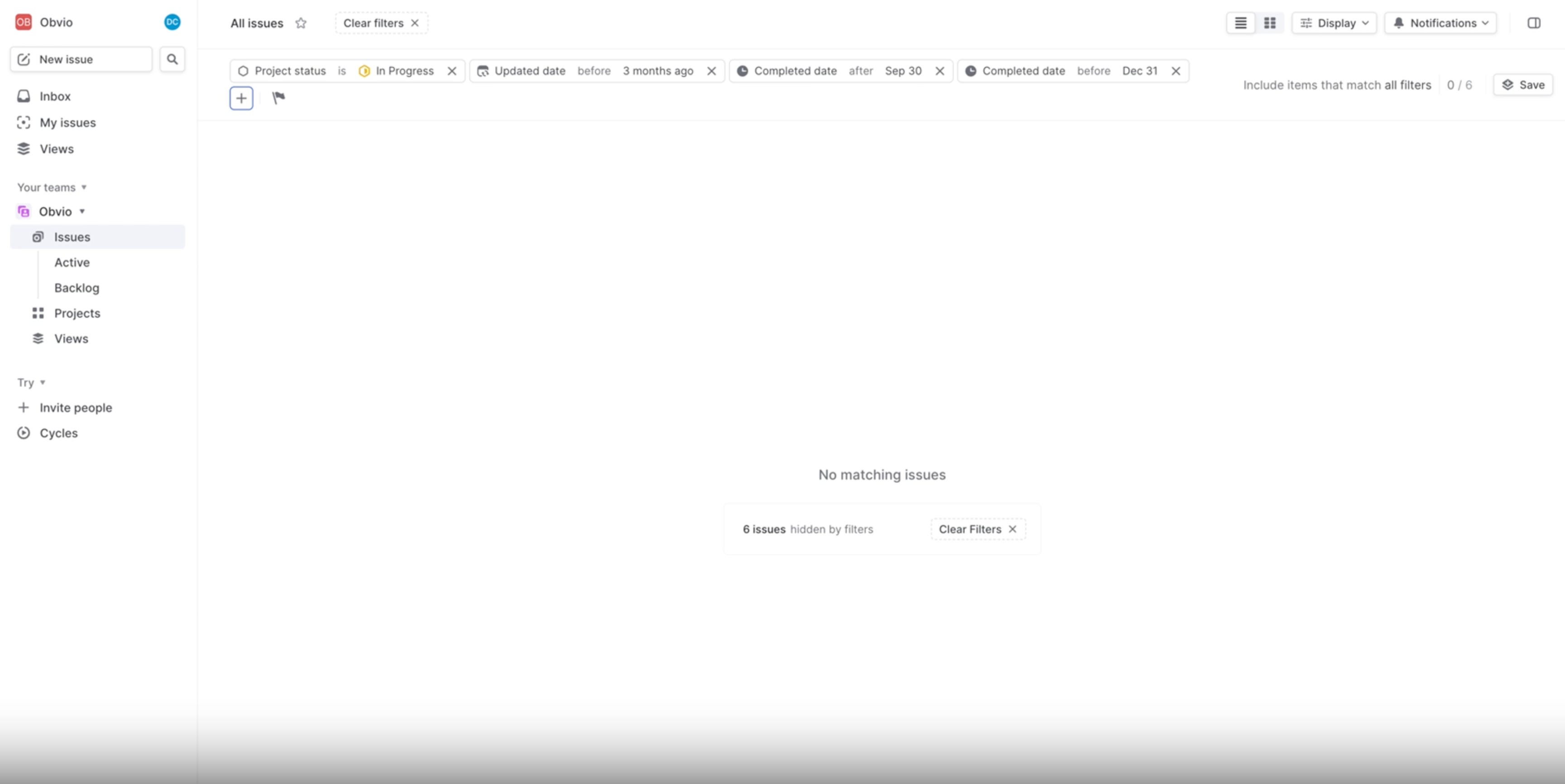
6/ You can even have multiple requests. In this example I asked “Open projects 3 months past their target date. Completed this quarter.”
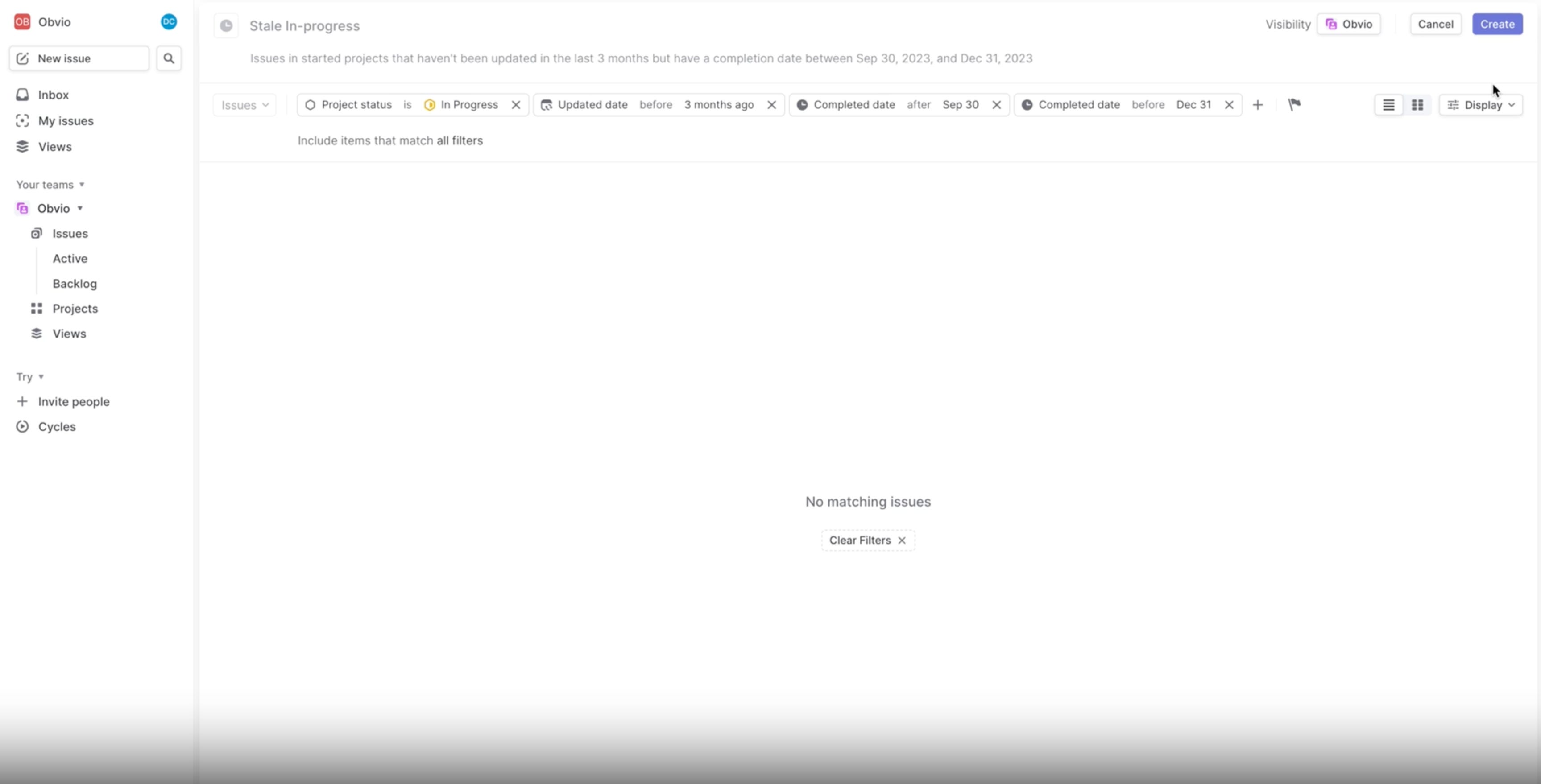
7/ You can save filters, and it conveniently auto-fills the title based on your filter type. For instance, it named my filter 'State in-progress' and provided a helpful description.
Liner nailed it with this one. They took what typically is a tedious process and distilled it into a user-friendly 'tell us what you want, and we'll handle the rest' approach.
They’re taking that cognitive load off the user and doing all the heavy lifting for them.
Get high-quality user flows and dashboard designs for your SaaS product in days not weeks.
By a pragmatic senior product designer.
All for an affordable monthly subscription.
Cancel anytime.